How to Play itch.io Games on iPhone (Step-by-Step Guide)
Ever found an indie game on itch.io that looks brilliant, only to discover that it was made for a computer? If you play on an iPhone, you do not necessarily have to give up. Many itch.io games run directly in a mobile browser, so you can start playing without installing a traditional app.
The trick is knowing which games to choose. Some use touchscreen controls and work well on a phone, while others need a keyboard, a mouse or desktop software. In this guide, we will show you how to play itch.io games on iPhone using Safari, where to find games made for mobile, how to launch them and what to do when a game refuses to load.
The quickest method: Open Safari on your iPhone, visit itch.io, find a game labelled Play in browser or showing a Run game button, check that it supports mobile or touchscreen controls, and launch it. You do not need to install a separate itch.io app to play supported browser games.
Page Contents
Can You Play itch.io Games on an iPhone?
Yes, you can play many itch.io games on an iPhone, but not every game on the website will work. Itch.io hosts different kinds of indie games, including HTML5 games that run in a browser and downloadable games made for particular operating systems.
Browser games are the easiest option. These games use web technologies such as HTML, JavaScript and CSS, allowing them to run on a supported browser without a conventional game installation. Some are designed for mobile screens and touch input; others may load on an iPhone but remain difficult or impossible to control.
| Game type | Can you play it on iPhone? | What to do |
|---|---|---|
| HTML5 game with touchscreen support | Usually, yes | Open it in Safari and launch the game. |
| Browser game that requires a keyboard | Sometimes, but controls may be a problem | Check for touch controls or compatible controller support. |
| Windows game (.exe) | No, not directly | Look for a browser version or a supported iOS release. |
| Android APK | No | An APK is an Android application, not an iPhone app. |
| macOS or Linux game | Not directly | Check whether the developer offers a browser or iOS version. |
| Native iOS game | Potentially | Follow the developer’s legitimate iOS installation instructions. |
Itch.io’s official HTML5 game documentation explains how browser-based games work and why mobile compatibility matters. The important distinction is that a game appearing on a phone’s screen does not automatically mean its gameplay is designed for touch controls.
How to Play itch.io Games on iPhone: Step-by-Step
Step 1: Open itch.io in Safari
Unlock your iPhone and open Apple’s Safari browser. In the address bar, enter itch.io and load the website.
You can browse games without installing an itch.io app. Safari is a convenient starting point because it gives you direct access to the website and its browser games.
- Make sure your iPhone has an active internet connection.
- Use the website rather than downloading a random game installer.
- If you already have a game link, paste it into Safari to go straight to its page.
Step 2: Find Games That Support Mobile Browsers
This is the most important step. Instead of opening random games and hoping they work, start with itch.io’s mobile and touchscreen categories.
Use these pages to find suitable games:
- HTML5 games tagged Mobile and Touch-Friendly — a useful starting point for games intended for mobile play.
- Free HTML5 games tagged Mobile — browse free browser-based games.
- HTML5 games tagged iOS — explore another set of games associated with iOS.
You can also use the search box on itch.io to look for terms such as mobile friendly, touchscreen, phone browser or a genre you like, such as puzzle, racing, horror or adventure.
These tags are a starting point, not a guarantee. A creator’s game description and control instructions are more useful than a label alone. Always inspect the individual listing before committing to a longer game.
Step 3: Check the Game Page Before Launching
Open a game’s page and take a moment to read its details. Look for these three things:
- Browser support: Look for HTML5, Play in browser or a Run game button.
- Mobile compatibility: Look for mobile-friendly information, smartphone support or a statement that the game works in Safari.
- Controls: Prefer games that explicitly support touchscreen input, tapping, dragging or swiping.
Be cautious if the instructions only mention WASD, the arrow keys, mouse clicks or keyboard shortcuts. A game may still load successfully on your iPhone, but that does not mean you will be able to control it properly.
For example, Traffic Dodger specifically describes swiping left and right on mobile and lists touchscreen input. That is the type of information worth looking for before you start.
Step 4: Tap Run Game or Play in Browser
Once you have found a compatible game, tap its Run game or Play in browser option. Depending on the game, you may then see a launch screen, a Play button or an embedded game area.
Tap the launch button if one appears and give the game time to load. Some browser games load their images, music and other assets before gameplay begins. A larger game may take longer than a small puzzle or arcade game.
Itch.io supports a click-to-launch mode for HTML5 games on mobile. This lets the game expand into a larger playing area instead of leaving the website’s interface around the game. The exact appearance depends on how the developer has configured the project.
Don’t tap Download unless you actually want the files and know they are compatible with your device. For the simplest iPhone experience, choose a game that runs directly in the browser.
Step 5: Play Using Touchscreen Controls
Once the game opens, follow its on-screen instructions. Common mobile controls include:
- Tap: Select options, jump, attack or start a round.
- Swipe: Move a character, change lanes or move objects.
- Drag: Aim, steer or move something around the screen.
- On-screen buttons: Use virtual controls when the developer provides them.
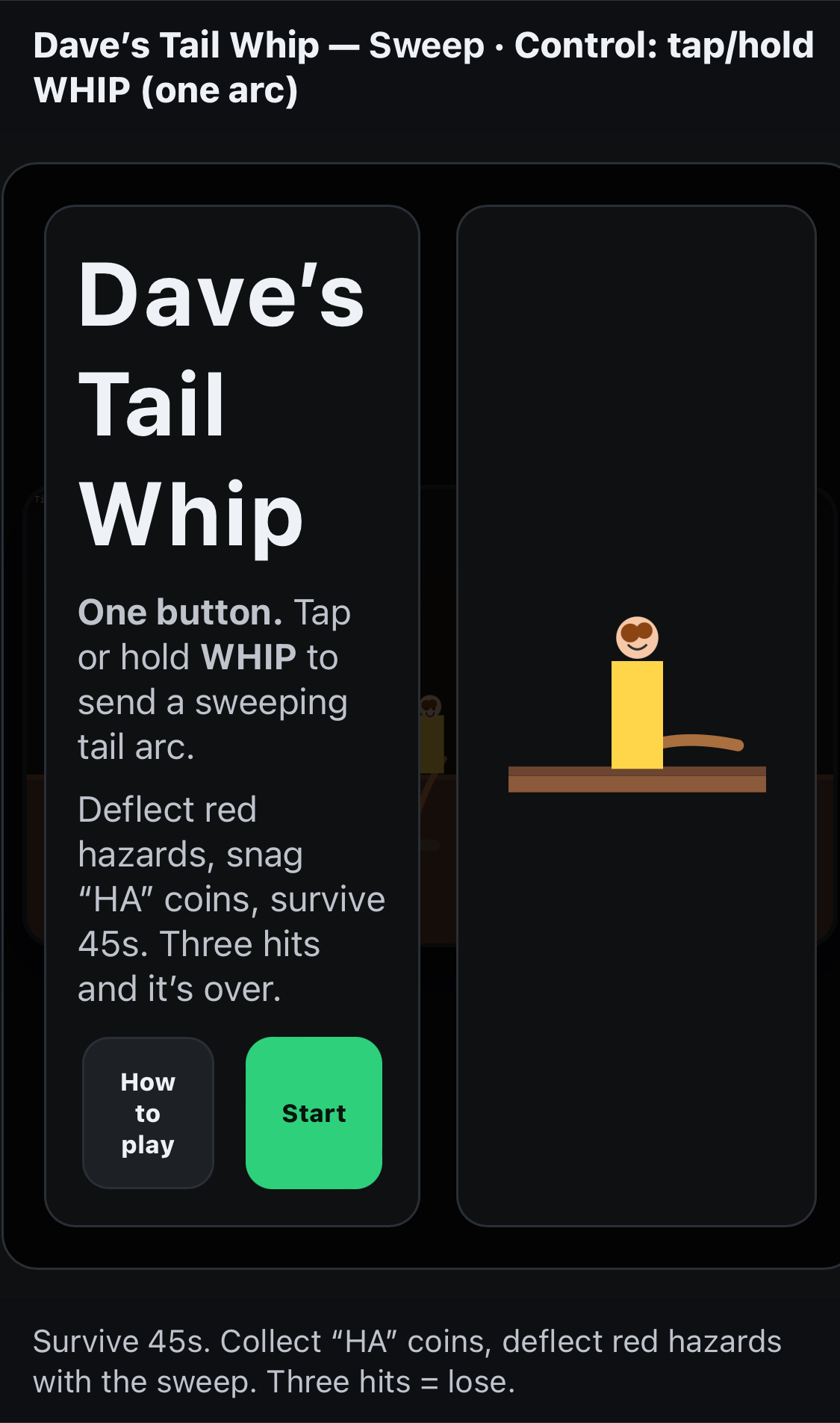
One real example is Dave’s Tail Whip, whose instructions describe tapping or holding to attack. The screenshot below shows the game’s interface and gives you an idea of the kind of control instructions to check.
If the game asks you to use keys that do not exist on your touchscreen, look for a different game or check whether the developer supports a compatible external controller. Do not assume that every browser game can be made mobile-friendly through Safari settings.
Step 6: Switch to Landscape or Full Screen If Needed
Some browser games are designed to be played vertically, while others need a horizontal screen. If the game asks you to rotate your device, turn your iPhone sideways. If the orientation does not change, check whether Portrait Orientation Lock is enabled in Control Center.
If the game offers a fullscreen button, use it when helpful. Fullscreen can give you more room for gameplay and reduce the amount of browser interface visible on screen.
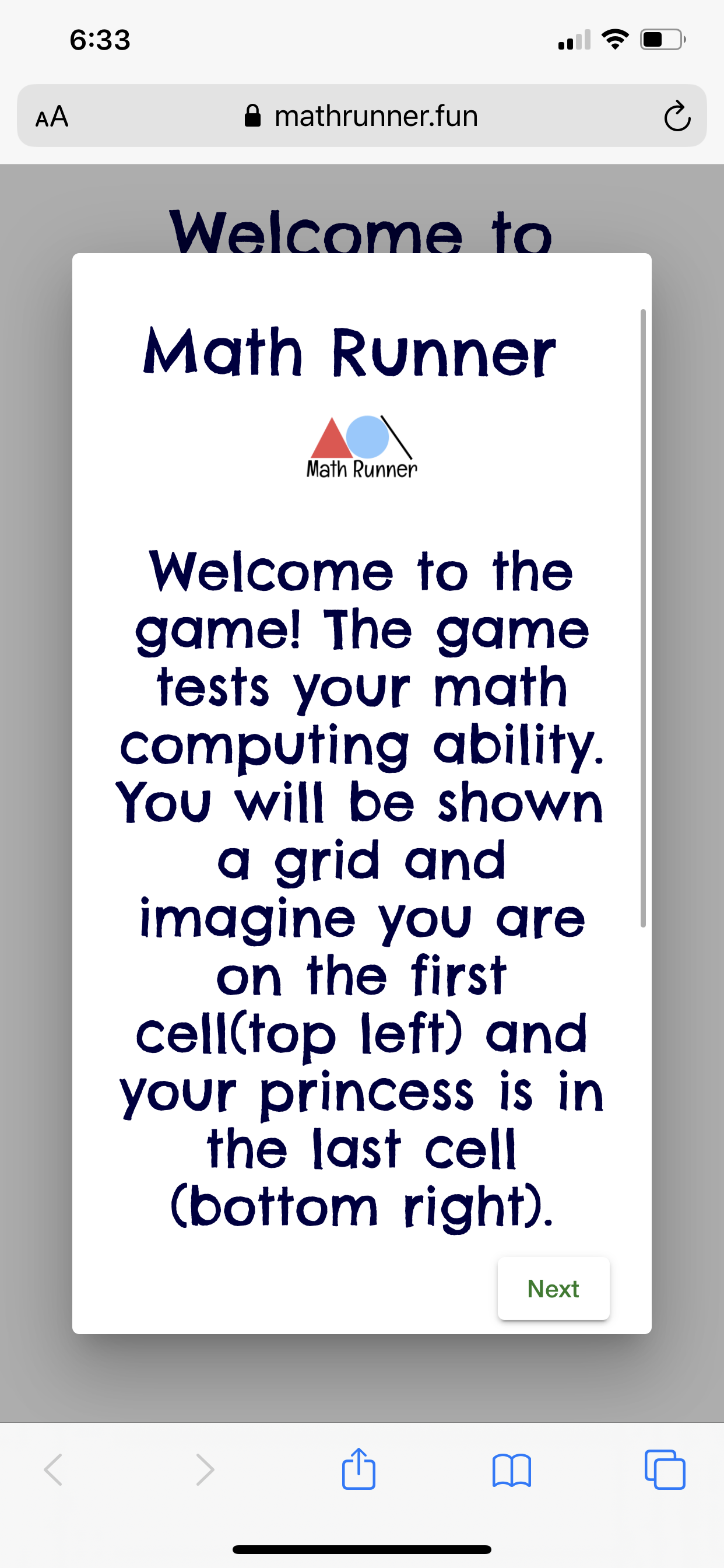
Here is another example of a browser game being displayed on a mobile Safari screen. Treat it as an illustration of browser gameplay rather than a guarantee that all games have the same layout or controls.
How to Add an itch.io Game to Your iPhone Home Screen
Found a browser game you want to revisit? You can add its webpage to your iPhone Home Screen so that you do not have to search for it every time.
Follow these steps in Safari:
- Open the game’s page in Safari.
- Tap the Share button. Depending on your Safari layout, it may appear at the bottom or in the page menu.
- Scroll through the available actions and choose Add to Home Screen.
- If the option is missing, scroll to the end of the actions list and look for Edit Actions, then add the Home Screen action if available.
- If your iPhone shows an Open as Web App option and you want that behaviour, turn it on.
- Tap Add.
The icon gives you a shortcut to the webpage. It does not turn a downloadable PC game into an iPhone app, and it does not guarantee that a game will work offline. You still need the game itself to be compatible with the mobile browser.
Apple explains this process in its official guide: Turn a website into an app in Safari on iPhone.
Two Browser Games to Try on Your iPhone
1. Block Dodger
Block Dodger is a compact arcade game built for phones. The objective is to move a glowing orb and avoid falling blocks for as long as possible. The developer says you can drag anywhere on the screen to move, and tap after a game over to restart.
It is a useful first test because its controls are simple and it runs in the browser without a conventional installation. You can try it directly from the game’s page.
2. Traffic Dodger
Traffic Dodger is an endless driving game where your goal is to avoid incoming traffic and survive as the difficulty increases. Its developer explicitly lists swiping left and right as the mobile control method and identifies the browser version as available for PC and iOS.
That makes it another straightforward option if you want to see how a browser game with touchscreen support feels on your device.
Why Some itch.io Games Do Not Work on iPhone
If a game refuses to run, the problem is not necessarily your iPhone. A game’s format, controls and browser compatibility all matter.
- It is a downloadable PC game: A Windows executable or macOS application cannot simply be opened as an iPhone game.
- It needs a keyboard or mouse: The game may load, but essential actions might be impossible with touch controls.
- The developer has not optimised it for mobile: Text, buttons or the game viewport may be too large or too small for the screen.
- The game has technical limitations: It may use browser features, plugins or controls that are unsupported on the device.
- The game needs more time to load: Large assets or an unstable connection can make a game appear stuck.
Itch.io’s official HTML5 documentation explains that developers can mark an HTML5 game as mobile-friendly. If that setting has not been enabled, itch.io may show a warning that the game might not work on a phone. The warning is worth taking seriously.
How to Fix itch.io Games That Will Not Load on iPhone
| Problem | What to try |
|---|---|
| The game stays on a loading screen | Wait briefly, reload the game page once and confirm your internet connection is stable. |
| The game loads but does not respond to taps | Check the listed input method. If it needs a mouse or keyboard, choose a touchscreen-compatible alternative. |
| The screen looks cropped | Try rotating your iPhone to landscape or portrait, according to the game’s instructions. |
| The browser page keeps appearing around the game | Look for the game’s fullscreen or launch button, if available. |
| There is no Run game button | Check whether the project is downloadable-only, or whether the developer provides another supported way to play it. |
| The game crashes or freezes | Close the game tab, reopen Safari and try again. If the problem continues, the game may not be compatible with your device. |
| There is no sound | Check the iPhone’s silent mode and volume, then tap the game’s start button. Some browser games require a user interaction before audio begins. |
| The controls are too small | Check for control options or use a different game designed for mobile screens. |
If a game still fails after these basic checks, try another mobile-friendly HTML5 title. You should not need to download unknown profiles, certificates or unrelated apps just to play a browser game. Avoid entering your Apple Account password on unfamiliar pages or installing files whose purpose you do not understand.
Can You Download itch.io Games and Play Them Offline on iPhone?
Sometimes a developer provides a file specifically intended for an iOS-compatible installation method, but a download button by itself does not mean the game is ready to run on an iPhone. The file must be suitable for iOS, and the developer must provide a supported way to install it.
For most beginners, browser games are the easier route. A webpage shortcut is convenient, but it does not automatically download all the game’s assets or make it playable without an internet connection. Whether offline play works depends on how the developer built the game.
If you want to play offline, look for a game whose developer explicitly explains offline support. Do not assume that a game will continue working after disconnecting simply because you added it to the Home Screen.
Frequently Asked Questions
Do I need to install the itch.io app on my iPhone?
No. You can open itch.io in Safari and play supported browser-based games directly. The official itch.io desktop app is listed for Windows, Linux and macOS, so Safari is the simplest starting point on iPhone.
Are all itch.io games compatible with iPhones?
No. Some games are made for computers or require keyboard and mouse input. For the best chance of success, look for HTML5 games, mobile-friendly descriptions and touchscreen controls.
Can I play free itch.io games on my iPhone?
Yes. Itch.io has a collection of free HTML5 games, including titles designed for mobile browsers. Check the price and game description on each project’s page because not every game is free.
Can I add an itch.io game to my Home Screen?
You can add a shortcut to the game’s webpage through Safari’s Share menu and Add to Home Screen option. It provides quick access, but it does not convert a PC download into a native iPhone game or guarantee offline support.
Why does a game work on my computer but not on my iPhone?
The game might depend on keyboard controls, a mouse, desktop software or browser features that are not available on your phone. Try a mobile-friendly version or ask the developer whether iPhone support is planned.
Can I play itch.io games offline after opening them once?
Not always. Some games need an internet connection each time you play, while others may keep certain assets or saved progress in the browser. Offline support depends on the individual game, so check its instructions rather than assuming it will work without a connection.
Final Thoughts
Playing itch.io games on an iPhone is much easier when you start with the right kind of game. Open Safari, browse HTML5 titles, check that touchscreen controls are supported, and use Run game or Play in browser to launch the experience. You can add a Home Screen shortcut later if you want quicker access.
The main thing to remember is that itch.io is home to many different kinds of games, not a collection of titles that all work identically on every device. A little checking before you launch can save time and help you discover small indie games that are genuinely fun to play on your phone.
For more browser-game ideas, check out our guide to Cool Math games you can play online on Gamers Gurukul.


